The Buttons
| This button removes the corresponding row from the dictionary. | |
| This button inserts an empty row into the dictionary at (not after) its corresponding row. | |
| This button opens up a dialogue with which you can edit a dictionary entry's data. | |
| If you accidentally deleted a row, use this button to undo its deletion. You can press Ctrl + Z as a shortcut. For now, other actions (editing an entry, adding a new row, etc.) cannot be undone other than manually re-editing the data, deleting the row, etc. | |
| Use this button to download your own local copy (.csv) of the dictionary that can be opened with spreadsheet software such as Excel. The changes you make to this document won't show up in the hub; this feature is for convenience and a kind of additional backup. | |
| Every change you make is simultaneously also made within the hub. If this button says "Disconnected", any changes you make won't be saved to the hub. If this is the case, try refreshing the page. If you are still having trouble, get in touch with Sam. |
Main View
This is what you see when you open the Sandbox; the Hub itself is much longer. Use the Sandbox to get used to the hub's features before making permanent changes. Try adding, editing and removing rows, and undo these deletes too. Note that the Sandbox is much faster than the Hub itself.

Edit an Entry
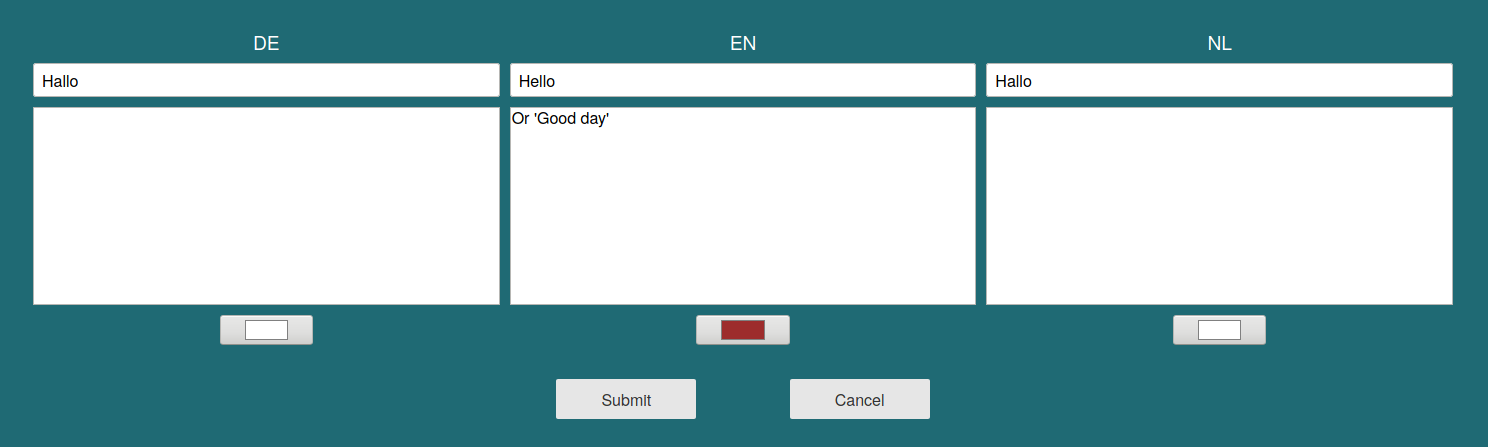
The small input fields in the first row are for the translations; the larger ones are for corresponding comments. Finally, the colour input boxes are for colour-coding the entry (e.g. to let others know who made the entry). To save changes, press the 'Submit' button. As a shortcut, if a translation input field is in focus (as opposed to a comment field), you can press Enter. To close the dialogue without saving changes, press the 'Cancel' button, the Escape key or click outside of the coloured box. All changes are lost in this case.
Comments
If you hover over the sticky note icon where an entry has a comment, the comment is shown in a bubble.

Colour Selection
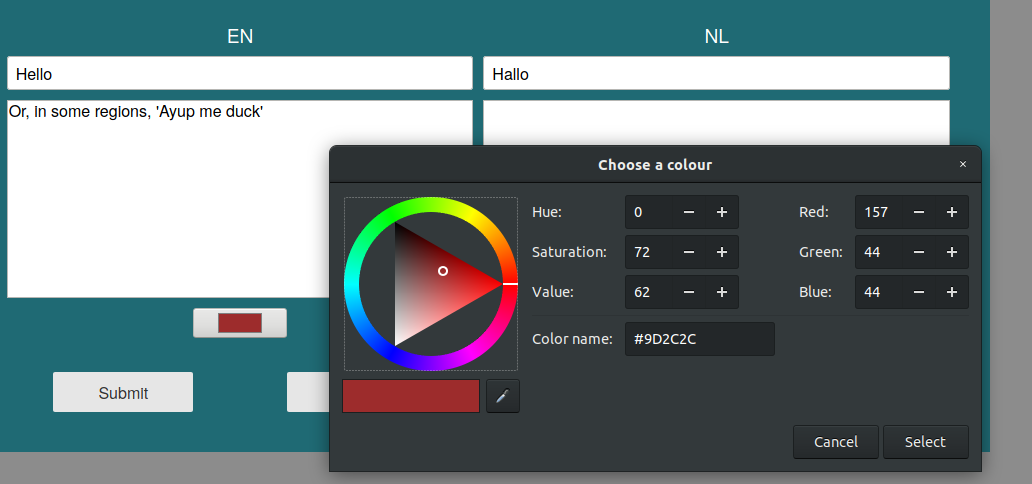
Depending on which browser you use, the colour selection tool will look something like the screenshots below. Entering numbers is more accurate than dragging and selecting with your mouse.

Issues?
If you're having trouble, get in touch! I'll be happy to help.